With Mission Control you can track your business, sales, orders, employees and can edit your trading hours.
1. How to update Trading Hours:
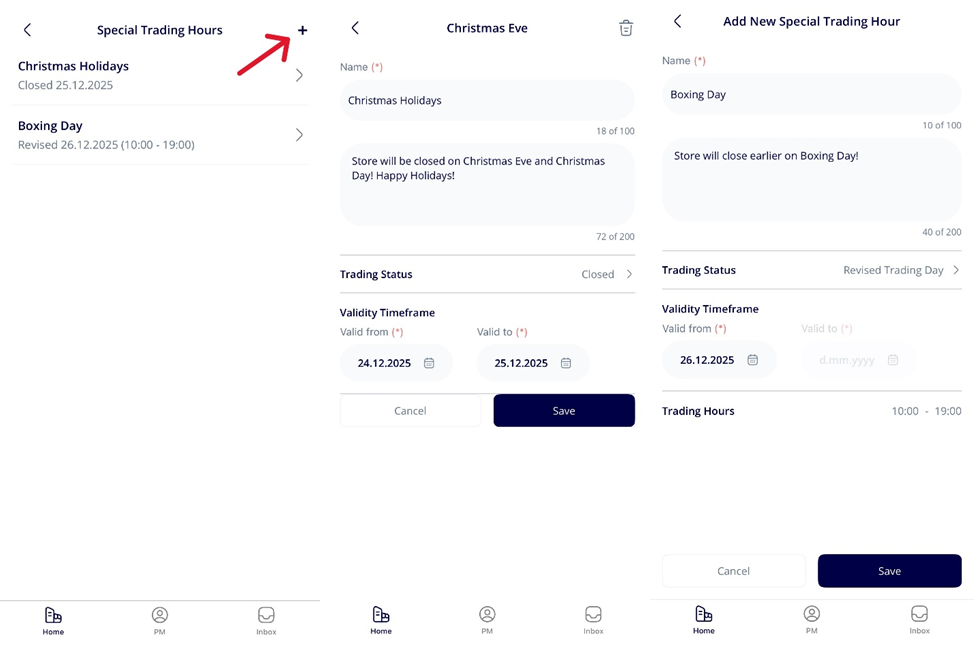
- Log into Mission Control, choose your business and navigate to “Trading Hours”
- If you have more than 1 location, you can choose different location from the top drop-down menu, next to the store name.
- If you have different trading hours for delivery, collection and dine in, you can choose each occasion from the drop-down menu, next to the “Default Trade”. (Default Trade will apply for all occasions, if you do not have different hours.)
- Press on the day you wish to change and adjust the trading hours.
- If your closing time is past midnight – tick the first option “Closing hour extends past midnight”, in order to see all hours.
- If your trading hours are the same for all days – tick “Apply to all days”.
- Once ready press “Save” button and when you are back to the trading hours page, press “Save” button again.
2. How to add Special Trading Hours:
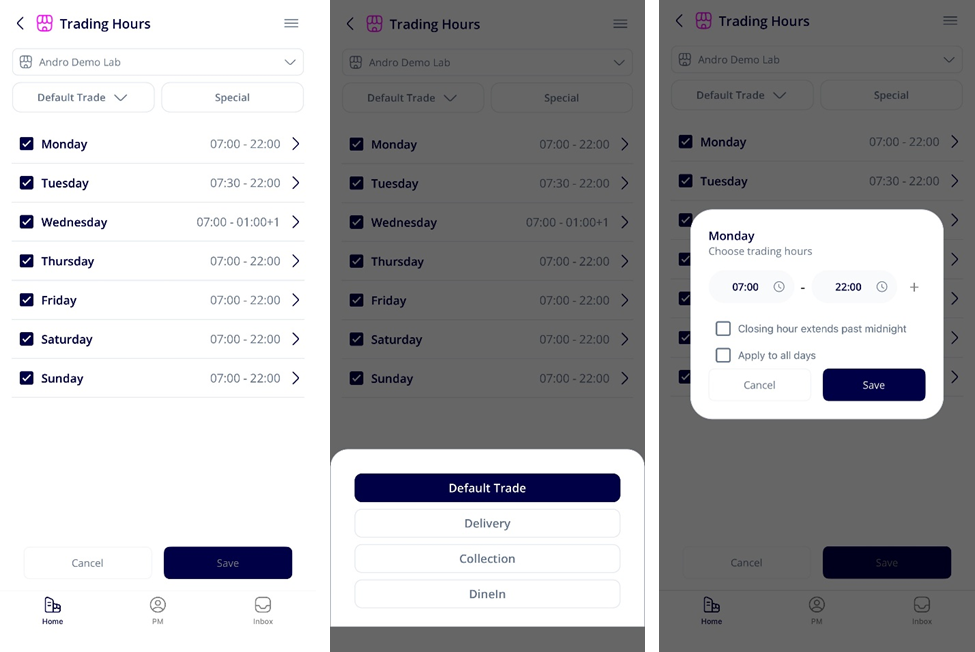
- From the Trading Hours screen, press on the “Special”.
- Click on the + sign on top right corner.
- Write an appropriate name (could be the reason for the special trading hours). This field won’t be displayed on the website!
- Write a display message, which will show on the Andromeda website!
- Choose “Trading Status” – either “Closed” or “Revised Trading Day”:
- If you choose “Closed” – the store will be closed for the days you add.
- If you choose “Revised Trading Day” – the store will have new trading hours, only for the day you select. You can add only “Valid from” date, as this setup is just for one day. Once the day is past, the trading hours will be back to normal!
- Choose validity timeframe. The timeframe is inclusive – meaning if you want to close it only for 1 day, you should select that day for both starting and end date! If you want to close the store for whole week – you need to add Monday to Sunday!