Andromeda POS gives an option to set items or even whole size/bases groups (like whole sides/drinks group, or only gluten free pizzas, or only large pizzas) as out of stock. This way you can easily guarantee that everyone from the staff will be aware for all items that are out of stock and will ensure that no mistakes will be done. This will also save time in letting the staff know when an item gets sold out, will eliminate the need to leave notes or worry if staff from next shift will know which items are sold out and will as well increase customer satisfaction, as the staff won’t sell an item, that is out of stock.
NOTE: Setting items or size/bases out of stock from Andromeda POS, will apply in-store and on Andromeda Website, but only for today. All items will be automatically back in stock tomorrow morning!
1. How to use Out of Stock from Andromeda POS:
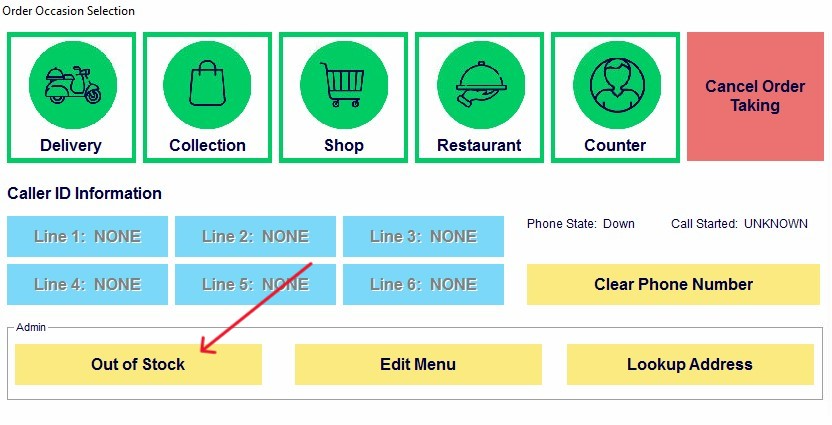
Login to Andromeda POS with manager or higher access level and navigate to “New Order” tab. From the occasion selection window, under the “Admin” zone, choose “Out of Stock”:
2. How to set items Out of Stock:
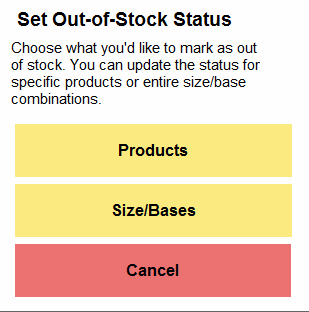
Choose the "Products" tab and you will see the same menu screen as when taking an order. Navigate to the items, that are sold out and click on them – the same way as adding to the basket – but instead - a new window will pop up with the option “Item Out of Stock”:
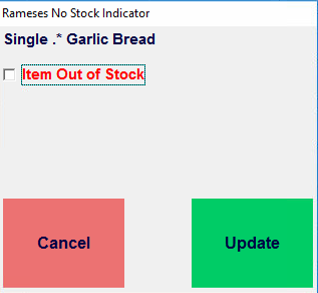
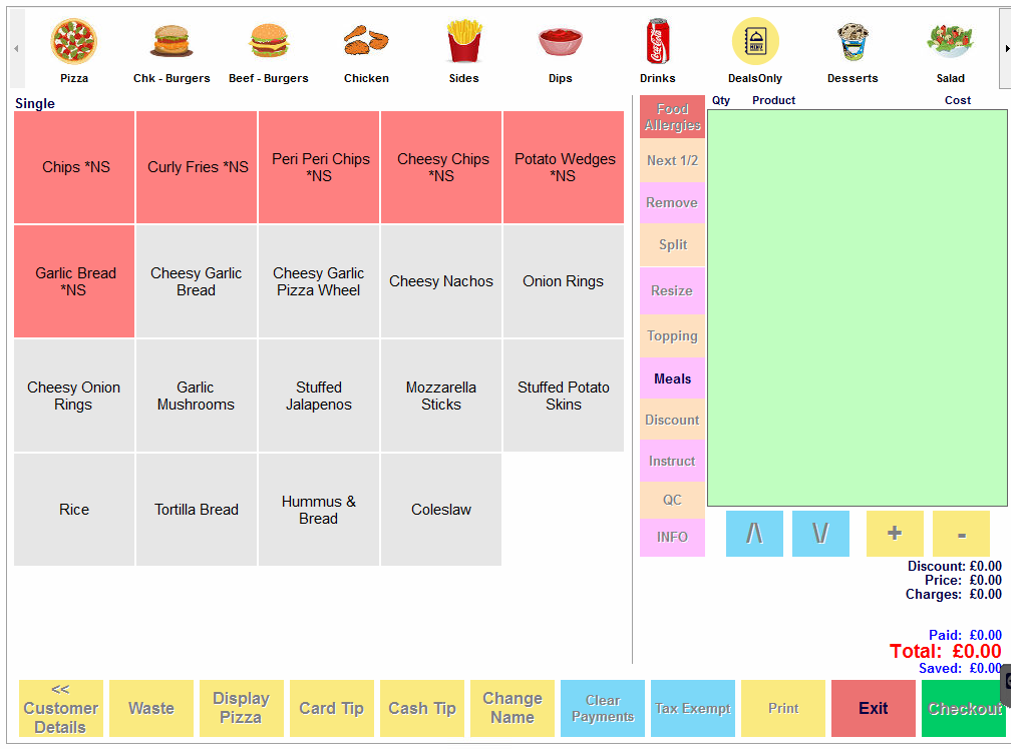
Once ticked, press “Update” and the item will be marked as out of stock. All items that are set to out of stock, will be marked in red color and will have “*NS” after the name (No Stock). Once done and all sold out items are updated, press “Exit” button and will go back to the occasion selection screen:
2. Setting Out of Stock Size/Bases
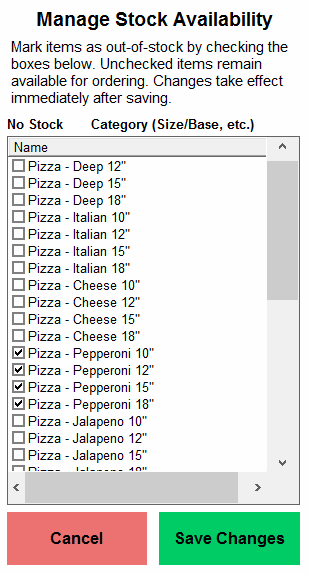
From the Out of Stock menu, select Size/Bases, which will open a new window, with all available menu size/bases groups you have. You can choose as many as needed, and then press "Save Changes". This will put the selected pizza sizes/crusts out of stock until tomorrow morning!
3. Placing an order with Out-of-Stock items:
When taking an in-store order with any occasion, the out-of-stock items, will show in red color the same way as above screenshot, so that they can be easily spotted. It will still be possible to add them to the basket, if some circumstances demand it, but when checking out, a window will pop up and will ask if you want to continue, as there are out of stock items:
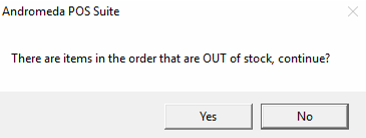
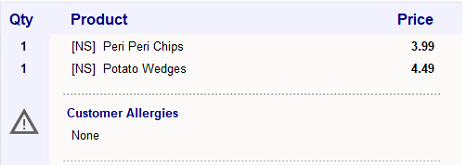
Once you press “Yes” you will be able to proceed and place the order. It will then also indicate on the dispatcher screen, that there are items, that are out of stock. They will have the same “[NS]” sign, but this time in-front of the name: